Help centre
Straightforward help for setting up tournaments, adding teams, building fixtures, entering scores, and running the day with less stress.
Admin dashboard walkthrough for organisers
Understand what the organiser dashboard is showing you and where to click next when managing a live tournament.
What this page is for
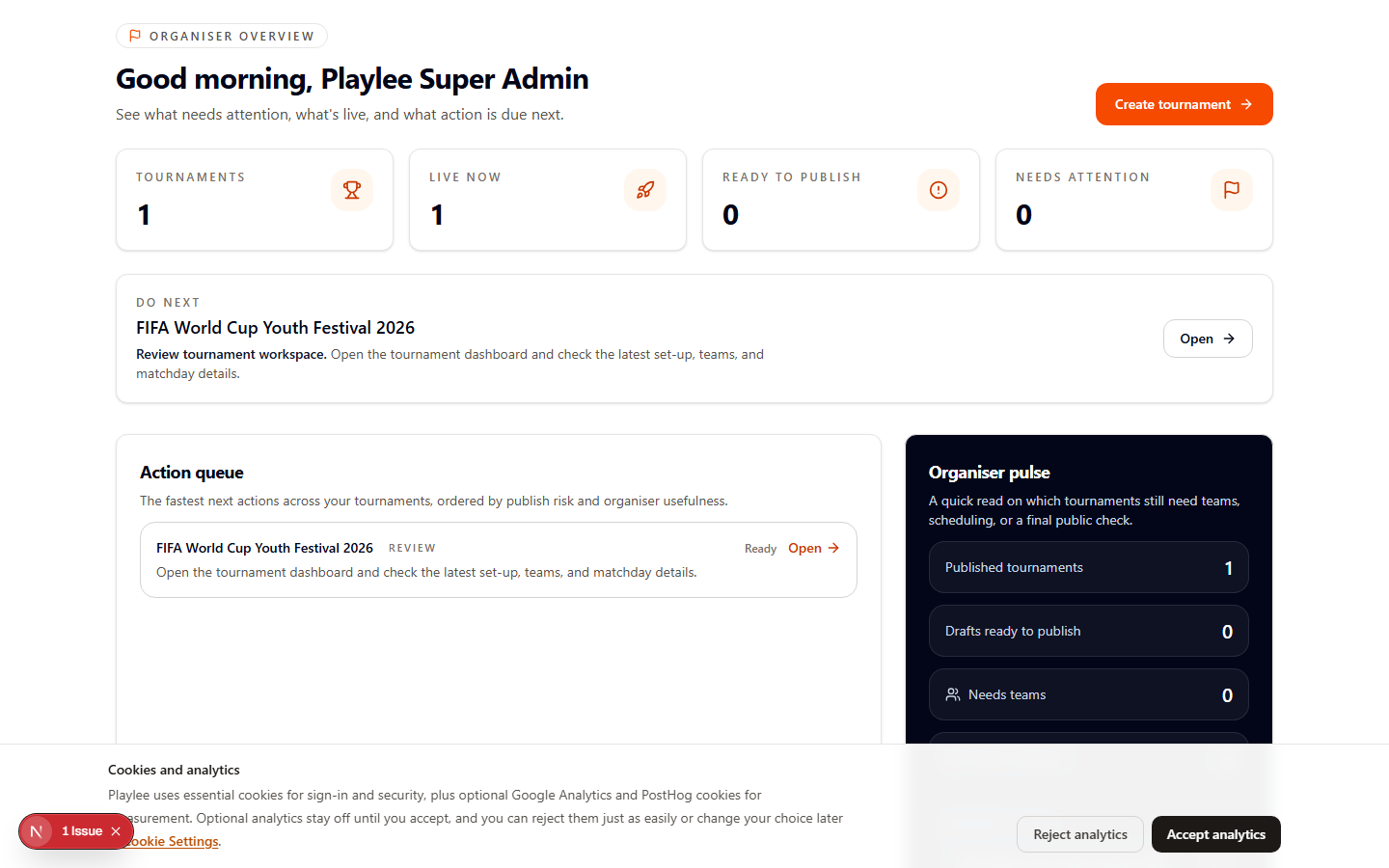
The dashboard is built to help organisers scan quickly and decide what needs attention next.
Main areas on this page
Use this to jump into the next important task.
These cards give a fast count of active tournaments and operational items worth checking.
This is the main workspace list for opening the event you want to manage.
Use this to spot unfinished setup or live operational warnings.
Typical flow
- 1Scan the KPI row first.
- 2Open the tournament you are actually working on.
- 3Use the pending task rail to prioritise the next action.
Important checks
- You know which tournament is currently active.
- Any obvious setup blockers are visible before you share links or fixtures.
- You can reach the next workspace in one click.
Common questions
No. Use it to prioritise work, then open the detailed tournament workspace.
No. It is the organiser overview, not the detailed control page for one event.